
See the exact journey your Internet connection
takes to any website, hop by hop!
What the App Does
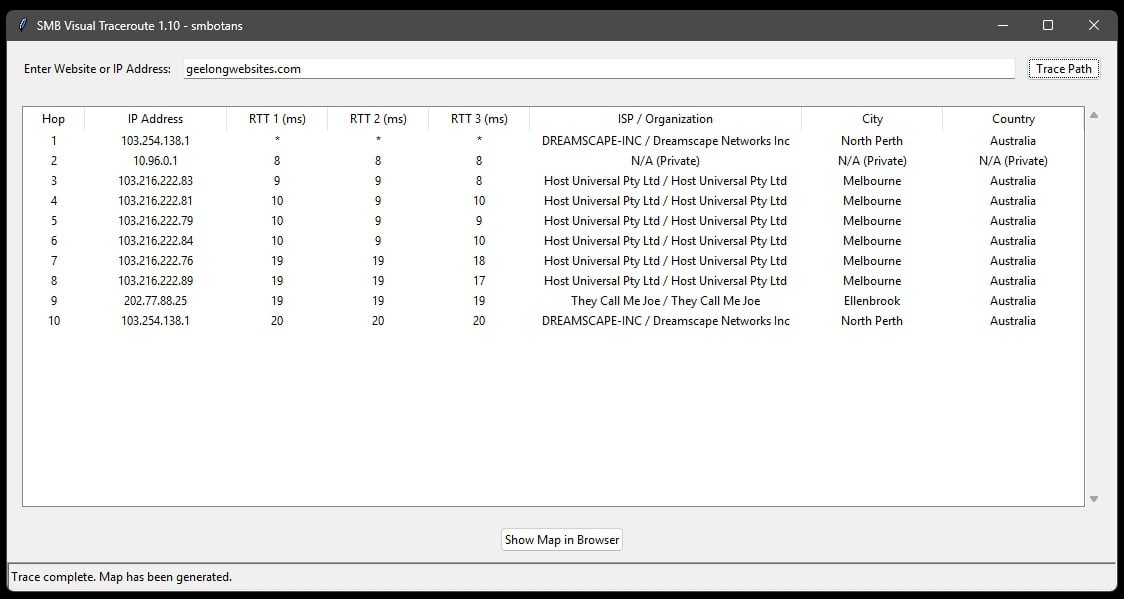
Think of the internet like a giant road system. When you visit a website, your request doesn’t go there directly. Instead, it’s passed along through a series of connected computers, called routers, just like a package going through different mail sorting centers to reach its destination.
This application shows you that exact journey.

SMB Visual Traceroute Features
- The Table: This gives you a step-by-step list of every “hop” or stop your data makes on its way to the website. For each stop, it tells you:
- IP Address: The unique address of the router.
- RTT (ms): How fast the connection is to that specific router (lower numbers are better).
- ISP / Organization: Who owns that router (like Telstra, Google, or Amazon).
- Location: The real-world city and country where that router is located.
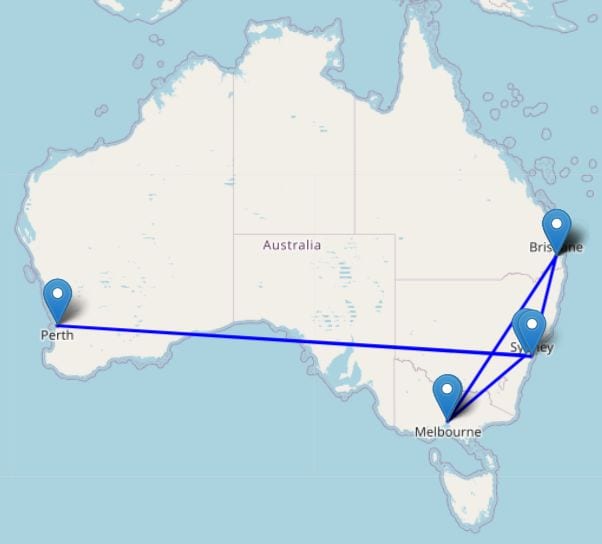
- The Map: This part takes all the stops from the table that have a known physical location and plots them on a world map. It then draws a line between them, giving you a visual picture of your data travelling across the country and the globe.
Understanding the Results
Understanding the Numbers
The ms numbers in a traceroute output represent the round-trip time (RTT), measured in milliseconds.
- What is being measured? The
traceroutecommand sends out a small packet of data (a “probe”) to each router (or “hop”) on the path to the final destination. Themsvalue is the time it took for that packet to travel from your computer to that specific router and for the router’s response to travel back to your computer. This is also commonly known as latency or ping time. - Why are there three
msnumbers? By default,traceroutesends three separate probes to each hop. This is done to get a more reliable picture of the connection to that router. Network conditions can fluctuate, so sending three packets gives you:- A sense of the average latency.
- An idea of how stable the connection is. If the numbers are close together (e.g.,
15ms 16ms 15ms), the connection is stable. If they vary wildly (e.g.,20ms 95ms 30ms), it might indicate network congestion or an unstable router.
- What does an asterisk (
*) mean? If you see an asterisk instead of anmsnumber (e.g.,* * *), it means that the probe sent to that router timed out. The router either did not respond at all or didn’t respond within the allowed time limit. This is very common and can happen for a few reasons:- The router is configured to ignore the type of packets
traceroutesends for security reasons. - The router is too busy to respond in time (network congestion).
- There is packet loss on the network at that point.
- The router is configured to ignore the type of packets
In short, the ms numbers are the most important metric in a traceroute, telling you how long it takes your data to reach each step on its journey across the internet.
Understanding the Map
The map doesn’t show all the hops because it can only plot a point if it has a physical location (latitude and longitude) for that IP address.
There are a few common reasons why some hops from the table don’t end up on the map:
1. Private IP Addresses
The first few hops in your trace are often on a private network (like your home, office, or your ISP’s local network).
These IP addresses (e.g., starting with 192.168.x.x, 10.x.x.x, etc.) are not unique on the public internet, so they cannot be geolocated.
2. No Geolocation Data Available
For some public IP addresses, the geolocation service (ip-api.com) simply doesn’t have location data.
This is very common for major internet backbone routers or interchange points.
Their exact physical location isn’t always public information, so the API can’t return coordinates for them.
If there are no coordinates, there’s nothing to plot on the map.
3. Timed-Out Hops
Sometimes, a router along the path is configured not to respond to traceroute requests for security or performance reasons.
In the table, these show up with asterisks (*) in the RTT columns.
Since the router never responded, we don’t have an IP address for it, and therefore no way to look up its location.
Other No-Frills Free Software
We have lots of other free no-frills software, click on the button on the right to view them all.
SMB Visual Traceroute Versions
1.10 Terminal window is now hidden.
1.00 Initial release.